

Affiliate Disclosure: This article contains affiliate links. If you purchase through these links, AutoPilotWork AI may earn a commission at no extra cost to you. Every tool recommended here has been personally tested in real-world workflows.
TL;DR — How to Use Claude for Email Automation
-
- Three paths exist: No-code (Claude.ai + Cowork), low-code (Zapier + Claude), and custom (API + Python). Pick based on volume and skill, not hype.
-
- The sweet spot for most freelancers is the Zapier + Claude API workflow — 30 minutes to set up, $30–80/month, handles up to 500 emails daily.
-
- Always draft, never auto-send. Claude occasionally hallucinates details. Human review catches errors that no temperature setting will.
-
- Deliverability matters more than the prompt. Without SPF, DKIM, and DMARC configured, even perfectly drafted emails will land in spam.
-
- Expected time savings: 60–80% of inbox triage, or roughly 6–9 hours per week for a typical solopreneur workload.
Why Claude Works Better Than Other AI Models for Email Automation
Most AI models produce email copy that needs heavy editing. The output reads as overly formal, padded with filler phrases, or stuffed with marketing language that triggers spam filters and human eye-rolls alike. Claude takes a different approach — its training emphasizes natural sentence rhythm, restraint in word choice, and consistent adherence to detailed instructions. Three specific capabilities make Claude the right tool for inbox automation. First, it follows long system prompts reliably across hundreds of outputs, which means brand voice rules actually stick. Second, it handles tone calibration well — the same prompt structure can produce a warm reply to a returning client and a firm response to a vendor escalation. Third, it generates text that sounds human enough that recipients rarely flag it as AI-written, provided you give it real context to work with. According to Anthropic’s published research, the latest Claude models are specifically trained to reduce the formulaic phrasing patterns that older language models defaulted to. For a direct comparison of how Claude stacks up against ChatGPT and Gemini across business tasks, see our hands-on Claude vs ChatGPT vs Gemini test.The Three Paths to Email Automation with Claude
There is no single correct way to use Claude for email automation. The right approach depends on three variables: how many emails you process daily, how much technical skill you have, and how much you can spend monthly. The diagram below maps the trade-offs.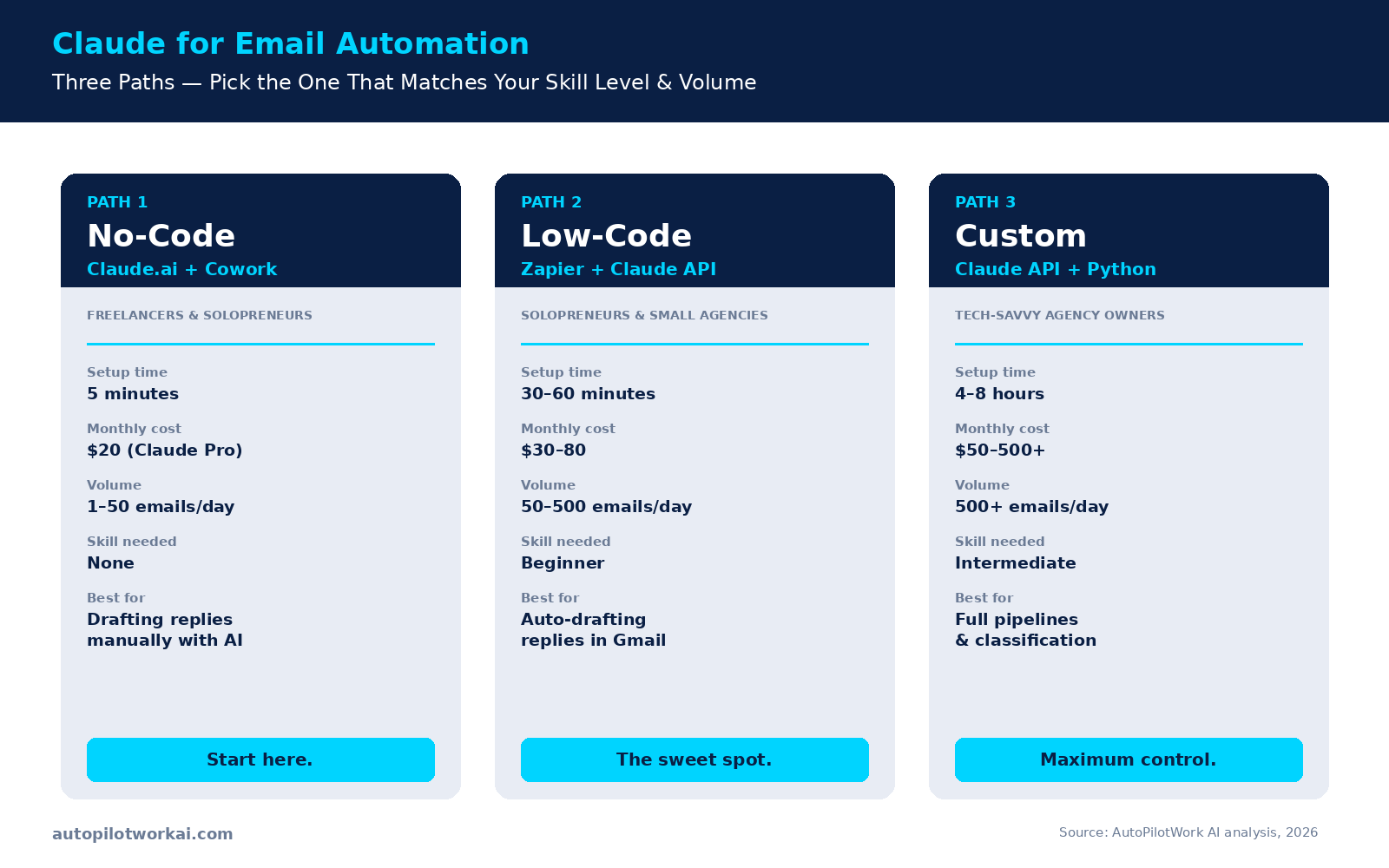
Path 1: No-Code with Claude.ai and Cowork
The simplest entry point is using Claude.ai directly. A Claude Pro subscription runs $20/month and lets you paste in an incoming email, attach a system prompt that defines your tone and constraints, and get a drafted reply in seconds. You copy the output back into Gmail manually. For users wanting deeper integration without writing code, Anthropic’s Cowork desktop tool connects Claude to Gmail, Calendar, and Drive directly. You can ask Claude to summarize unread threads, draft replies in context, and surface emails that need attention — all without leaving the desktop app. Setup takes about five minutes once your accounts are connected. This path fits freelancers and solopreneurs processing fewer than 50 emails per day where the bottleneck is drafting quality, not volume. Time savings typically land around 40–50% of email-related work — meaningful but not transformative. If you want to take this further and build a fully autonomous inbox agent rather than a drafting assistant, our guide to AI email agent automation covers the next level up.Path 2: Low-Code with Zapier and the Claude API
This is the path most solopreneurs and small agency owners should choose. Zapier connects Gmail to Claude’s API and creates a draft reply in your Gmail inbox every time a new email arrives — no coding required. The full setup takes 30 to 60 minutes for a first-time user. The workflow follows a simple pipeline: a new email triggers a Zap, the email body and subject are sent to Claude through an “Anthropic” action step, Claude returns a drafted response based on your system prompt, and Zapier creates a Gmail draft in the original thread. You open Gmail, review, edit if needed, and hit send.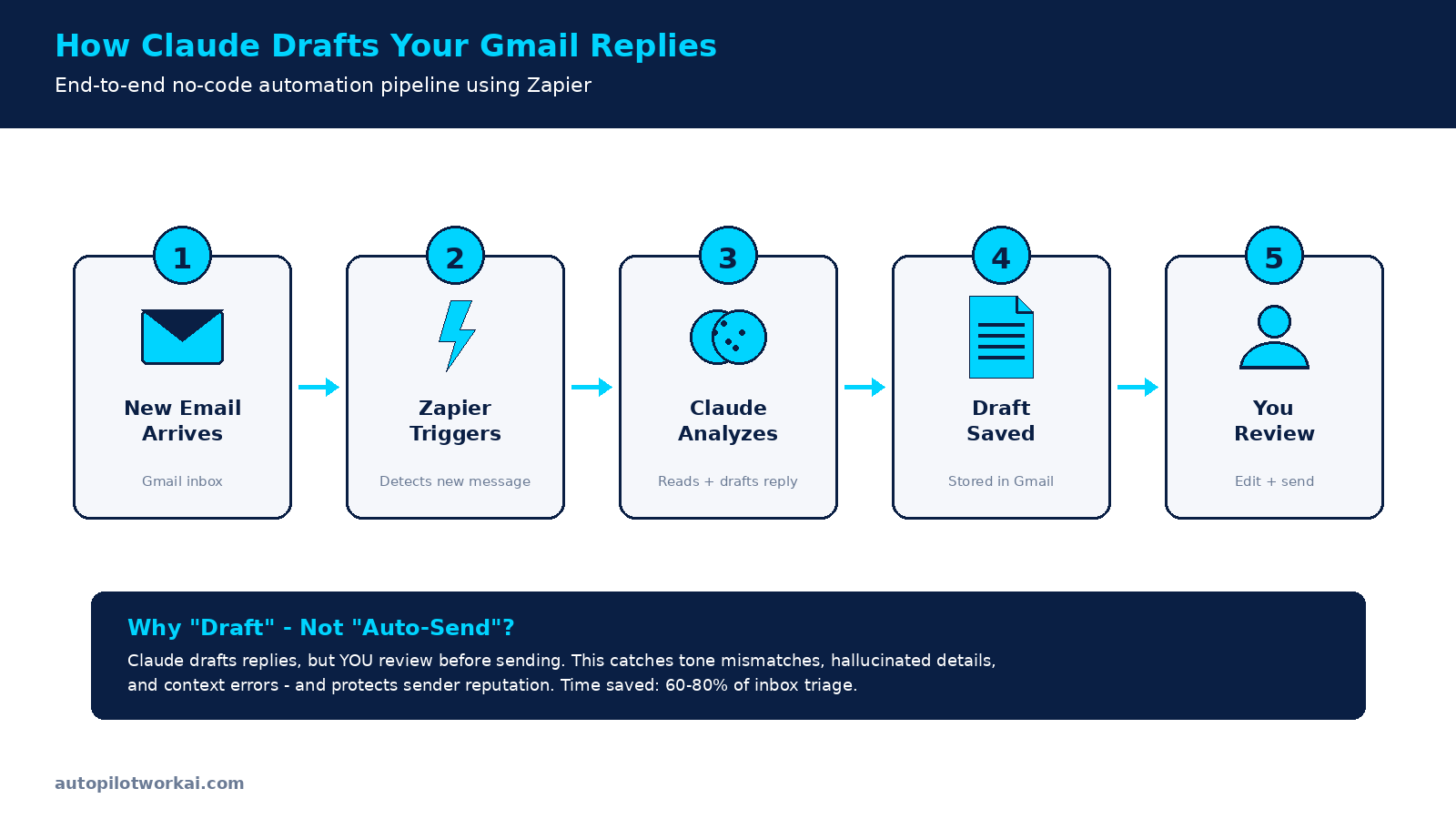
Path 3: Custom Pipeline with the Claude API
For agency owners handling hundreds or thousands of emails daily across multiple categories, a custom Python pipeline gives precise control. You call Claude’s API directly, classify incoming emails into categories before drafting, route them to different system prompts based on category, and store results in a database for review. Setup takes a developer four to eight hours for a working v1. Monthly costs vary — a typical agency setup running 2,000 emails through Claude monthly will spend $40 to $150 on API usage plus infrastructure. If you’ve never built an AI agent before, our step-by-step guide to building a no-code AI agent is the right place to start before attempting a custom pipeline. This path is overkill for anyone processing fewer than 200 emails per day. Start with the Zapier path and graduate to custom only when the limitations actually bite — which, for most freelancers and solopreneurs, never happens.Email Automation Tools Comparison: Claude vs. ChatGPT vs. Gemini
The three major model providers all offer email automation through similar integrations, but they differ meaningfully in output quality, instruction-following, and cost per output. The table below captures the key differences as of 2026.| Feature | Claude | ChatGPT | Gemini |
|---|---|---|---|
| Natural tone in emails | Excellent | Good | Average |
| Long system prompt adherence | Excellent | Good | Average |
| Cost per reply (~200 tokens) | ~$0.01–0.04 | ~$0.01–0.05 | ~$0.01–0.03 |
| Gmail integration (Zapier) | Yes | Yes | Yes |
| Native desktop email tool | Cowork | None | Gmail Smart Compose |
| Best for | Tone-sensitive replies, brand voice | High-volume cold outreach | Inline Gmail suggestions |
Step-by-Step: Setting Up Claude Email Automation with Zapier
The Zapier path is the most useful for the broadest audience, so the full setup walkthrough below covers it. You’ll need three accounts: Gmail (or Google Workspace), Zapier (Starter plan minimum), and an Anthropic API account with credits loaded.-
- Create your Anthropic API key. Log into console.anthropic.com, navigate to API Keys, generate a new key, and save it somewhere secure. Load at least $10 in credits to start.
-
- Create a new Zap in Zapier. Choose “Gmail” as the trigger app and “New Email” as the trigger event. Connect your Gmail account and select either your full Inbox or a specific label like “Needs Reply” to filter what triggers Claude.
-
- Add the Anthropic action step. Search for “Anthropic” or “Claude” in Zapier’s action library and select “Send Message.” Paste your API key when prompted. Choose the latest Claude Sonnet model for the best price-to-quality ratio on email work.
-
- Write your system prompt. This is the most important step. Define your role, tone, word count limits, signature, and explicit phrases to avoid. A good system prompt is 300–500 words. See the prompt template in the next section.
-
- Map the email body and subject as user input. In the Anthropic step’s “Message” field, insert the Gmail trigger’s “Body Plain” and “Subject” variables. This is what Claude reads to generate the reply.
-
- Add a Gmail “Create Draft Reply” action. Configure it to reply in the same thread using the Gmail trigger’s “Thread ID” variable, pull the response text from Claude’s previous step, and use your default signature. Do not use “Send Email” — drafts only.
-
- Test with one real email and publish. Run the Zap manually on a recent message. Open Gmail, find the draft, and read it as if a stranger sent it. If the tone, length, and accuracy all pass, publish the Zap. If not, adjust the system prompt and retest.
The Claude Email System Prompt Template That Actually Works
Most failed email automations fail at the prompt, not the integration. The template below has been refined across hundreds of real client replies. Customize the bracketed sections to your context.You are an email assistant drafting replies on behalf of [YOUR NAME],
a [YOUR ROLE] who runs [YOUR BUSINESS].
ABOUT THE SENDER (ME):
- Tone: professional but warm, never stiff or corporate
- Average reply length: 60-120 words
- Always sign off with: "Best, [YOUR NAME]"
- I prefer direct language over hedging
YOUR JOB:
Read the incoming email below and draft a reply.
RULES:
1. Match the formality level of the incoming email - mirror their tone.
2. If the sender asks a question I cannot answer without information
I haven't given you, draft a reply that asks them for the missing
detail rather than fabricating it.
3. If the email is a sales pitch, newsletter, or transactional,
respond with exactly: "SKIP — no reply needed"
4. Never use these phrases: "I hope this email finds you well",
"circle back", "touch base", "game-changer", "synergy",
"moving forward", "as per my last email".
5. Keep paragraphs to 2-3 sentences maximum.
6. Do not invent meetings, prices, deadlines, or commitments
that aren't in our conversation history.
OUTPUT FORMAT:
Just the reply body. No subject line, no greeting preamble like
"Here's a draft." Start with the salutation, end with the signature.
INCOMING EMAIL:
[Zapier inserts Body Plain here]The Deliverability Traps Most Claude Email Tutorials Skip
A perfectly drafted email is worthless if it lands in spam. AI-generated content can trigger spam filters when language patterns are too uniform or sending domains lack proper authentication. The checklist below covers the seven non-negotiables.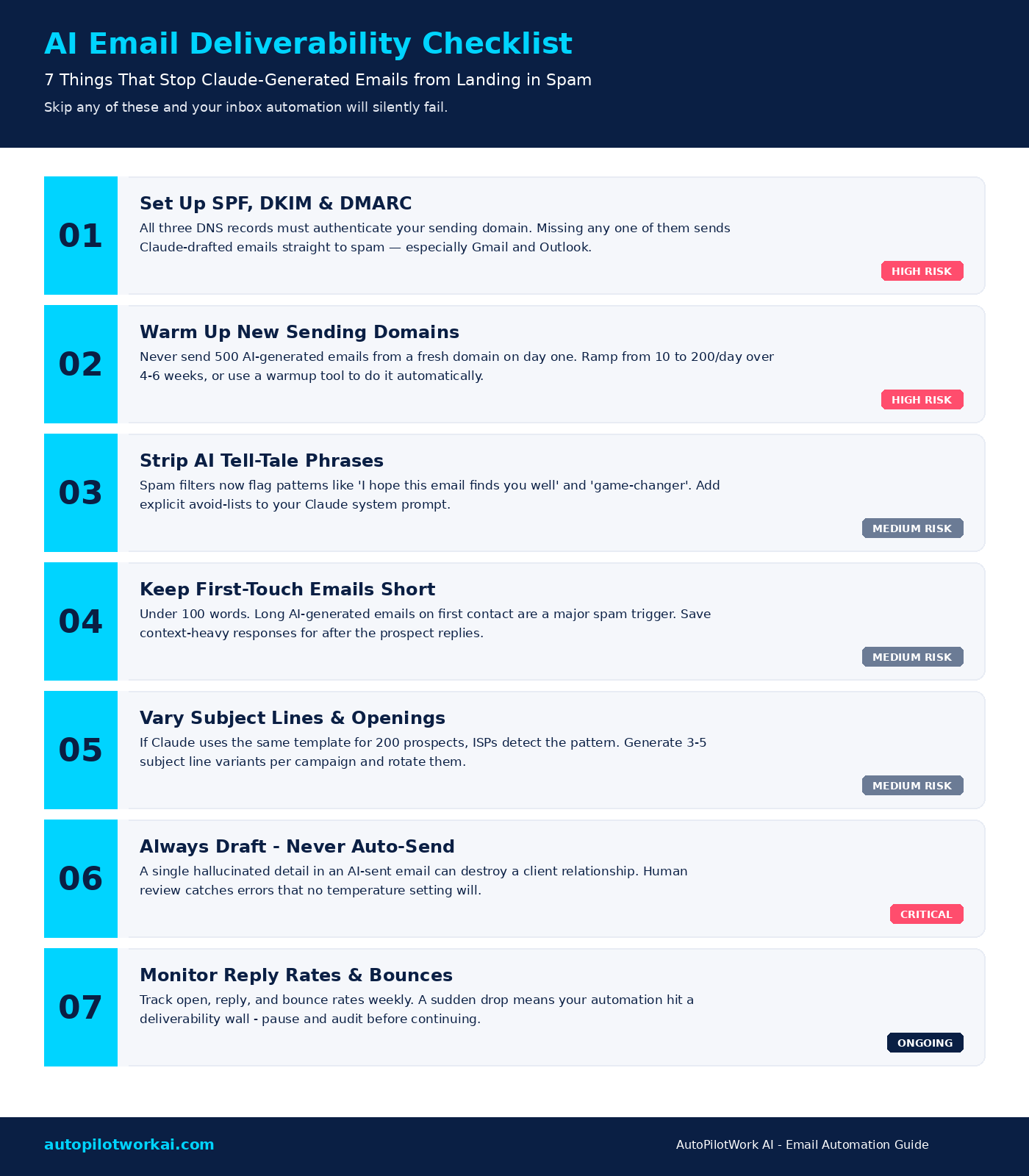
Five Mistakes That Kill Claude Email Automation Projects
Most failures fall into the same five buckets. Avoiding them up front saves the painful month-three rebuild.-
- Enabling auto-send too early. The temptation to skip review is enormous. Resist it for at least 30 days. Track every draft you’d have edited — that’s the error rate you’d have shipped.
-
- Writing a vague system prompt. “Be professional and helpful” is not a prompt. Specific tone examples, word count limits, and explicit phrase blacklists do the real work.
-
- Triggering on every incoming email. Most inbox traffic doesn’t need a reply. Filter Zapier to fire only on labels like “needs-response” or from specific senders. You’ll cut API costs by 70%.
-
- Skipping the warmup period for new domains. Covered above, but worth repeating — this is the single most common reason “the automation stopped working” three months in.
-
- Not version-controlling your system prompt. When the prompt breaks, you need to know what changed. Keep it in a Google Doc with dated revisions, or use a tool that tracks prompt history.
Frequently Asked Questions About Claude Email Automation
Is using Claude for email automation safe with sensitive client information?
Anthropic’s commercial API does not train on data submitted through API calls — that’s a contractual guarantee in their terms of service. For most freelance and small-business use cases, this provides sufficient privacy. However, if you handle HIPAA-regulated medical data, EU GDPR-sensitive personal data, or attorney-client privileged information, review Anthropic’s data processing addendum directly and consider self-hosted alternatives or explicit Business Associate Agreements where required.How much does it cost to use Claude for email automation monthly?
For the recommended Zapier path, expect $20–30/month for Zapier’s Starter plan plus $5–15/month for Claude API usage at typical solopreneur volumes (100–300 emails). Total: roughly $30–80 monthly. The no-code Claude.ai-only path costs $20/month flat. Custom API pipelines vary by volume but typically run $50–200/month for agency-scale workloads.Can Claude reply to emails automatically without any human review?
Technically yes, practically no. Claude can hallucinate details — invented meeting times, fabricated commitments, or confused identities. A single bad auto-sent reply can damage a client relationship permanently. The recommended approach is draft-mode for at least the first three months while you tune the system prompt. Some users graduate to auto-send for very narrow categories (e.g., “send acknowledgment of receipt”) but rarely for substantive replies.Which Claude model is best for email drafting?
Claude Sonnet hits the right balance for most email work — strong tone calibration and instruction-following at a fraction of Opus pricing. Opus is worth the cost for complex client communications requiring nuanced reasoning or multi-step context tracking. Haiku is too brief for most professional email drafting, though it works well for short acknowledgments or classification-only tasks.Can I use Claude email automation with Outlook instead of Gmail?
Yes. Zapier supports Microsoft Outlook as both a trigger and action app with the same workflow logic as Gmail. The setup is nearly identical — choose “New Email” as the Outlook trigger, send the body to Claude, and create a draft reply through the Outlook action. Office 365 users can also use Microsoft Power Automate as a Zapier alternative for tighter Microsoft ecosystem integration.How do I prevent Claude from generating emails that sound robotic?
Three techniques solve 90% of the robotic-tone problem. First, include two or three specific example replies in your system prompt that exemplify your voice — Claude pattern-matches these strongly. Second, add an explicit avoid-list of phrases (“hope this finds you well,” “touch base,” “game-changer”). Third, instruct Claude to keep paragraphs to 2–3 sentences and use contractions (“it’s” not “it is”). Together these produce drafts indistinguishable from human writing.What’s the difference between Claude Cowork and a Zapier-based setup?
Cowork is an interactive desktop tool — you ask Claude to handle email tasks in real time while you work. A Zapier setup runs automatically in the background, drafting replies whenever new emails arrive. Cowork is better for active inbox sessions where you want AI assistance on demand; Zapier is better for passive automation that runs while you focus on other work. Many users combine both.The Bottom Line on Claude Email Automation
Most freelancers and solopreneurs should start with the Zapier + Claude API path. Thirty minutes of setup, $30–80/month, and 6–9 hours per week saved on inbox triage is the strongest ROI of any AI workflow available today. Stay in draft-mode for at least three months while you refine the system prompt and verify accuracy. Add deliverability authentication before scaling volume. Promote to a custom pipeline only when the Zap genuinely becomes the bottleneck. The mistake is treating email automation as a one-shot setup. It’s an iterative system — the prompt evolves as you encounter edge cases, your filters tighten as you learn which emails actually need replies, and your time savings compound month over month. Start small, measure rigorously, and resist the temptation to auto-send until your error rate is genuinely zero. Ready to set up your first automation? Start a free Zapier trial here and follow the seven-step walkthrough above. Have questions about a specific workflow? Drop a comment below — I read every one.About the Author: Emmanouil Mavratzotis is the founder of AutoPilotWork AI. He helps freelancers, solopreneurs, and agency owners save time and scale their business through AI tools and workflow automation. Every recommendation on this site comes from real-world testing and practical implementation.